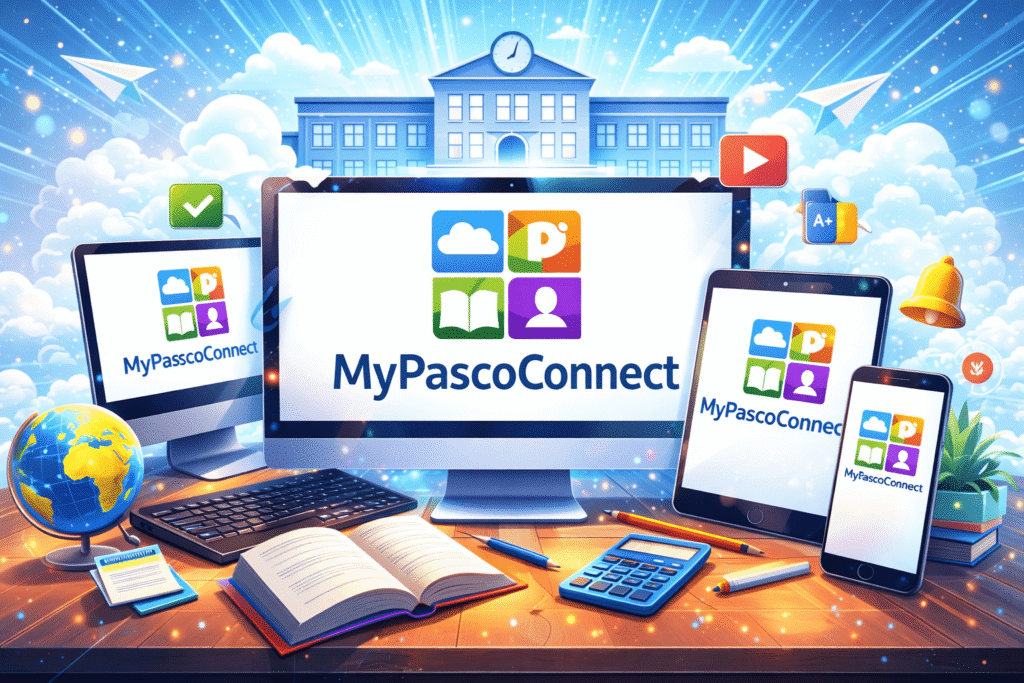
MyPascoConnect is the digital access point I would look at first when trying to understand how students, teachers, and staff in Pasco County Schools reach the district’s online learning resources. Rather than requiring users to remember a separate username and password for every educational service, the platform functions as a single sign-on environment that brings approved applications together in one place. Pasco County Schools describes myPascoConnect as the single sign-on solution for resources including MyLearning, digital resources, Office 365, and other applications.
From my perspective, the most important thing to understand is that myPascoConnect is not simply another website where students check grades. It is primarily an access gateway. Once a user authenticates successfully, the LaunchPad can present the applications and resources assigned to that particular account. Pasco eSchool’s current guidance says students can use the system to reach Canvas, digital textbooks, Office 365, and other online learning materials.
That distinction matters because users sometimes expect every school service to be located inside one dashboard. In practice, the available applications depend on the user’s role, school, grade level, and district permissions. I believe this is one of the easiest ways to avoid confusion: think of myPascoConnect as the doorway, while individual services such as Canvas or Office 365 are rooms beyond that doorway.
For students, the normal process involves opening the district’s designated login environment, entering the school-provided credentials, and then selecting an application from the LaunchPad. District instructional material identifies a student’s username as the Student ID or lunch number and describes the password as the student’s district password.
For teachers and staff, the credentials and available applications can be different. Official district documentation has historically identified staff access with district employee credentials, while current school resources continue to identify myPascoConnect as the access point for major digital services.
In this guide, I will explain what myPascoConnect does, how the login process works, what students and families can expect after signing in, how the ClassLink-based LaunchPad concept fits into the system, what common login problems mean, and how I would approach troubleshooting without compromising account security.
Key Takeaways About MyPascoConnect
The first point I want readers to remember is that myPascoConnect is fundamentally a single sign-on gateway. Pasco County Schools’ own school websites describe it as the single sign-on solution for MyLearning, digital resources, Office 365, and other applications.
The second point is that the exact dashboard is not necessarily identical for everyone. A student’s LaunchPad can contain resources that are appropriate for that student’s courses and grade level, while a teacher or staff member can have a different set of applications.
The third point is that the login process should begin with an official district-controlled destination. I would not recommend entering school credentials into a website simply because it uses the myPascoConnect name. Search results contain independent informational websites that explicitly state they are not affiliated with Pasco County Schools.
The fourth point is that myPascoConnect should not be confused with every other Pasco County Schools portal. For example, district school pages separately identify myStudent as a service for checking grades, attendance, schedules, report cards, and test scores, while myPascoConnect serves as the single sign-on gateway to digital learning resources.
Finally, I think users should treat their school credentials as sensitive account information. If a password fails, the safest response is to use the district’s official recovery or support process rather than trying random third-party password-reset pages.
What Is MyPascoConnect and Why Does Pasco County Schools Use It?
MyPascoConnect is a single sign-on environment associated with Pasco County Schools in Florida. Its purpose is to simplify access to digital educational resources by giving authorized users a central LaunchPad from which they can open connected applications.
The underlying idea is straightforward. Imagine that a student needs five different online services during a school day. Without single sign-on, the student might need to locate five websites, remember several credentials, and repeat the authentication process multiple times. A centralized launchpad reduces that friction by placing the authorized resources in one environment.
ClassLink, the technology platform associated with the LaunchPad model, describes its education-oriented system as a personalized portal where students, educators, staff, and families can access digital resources through single sign-on. ClassLink currently states that its platform connects with more than 6,000 digital learning resources.
That does not mean every Pasco County Schools user receives thousands of applications. The important distinction is between what the underlying platform can support and what a particular school district chooses to make available. I would therefore avoid assuming that another district’s ClassLink dashboard will look the same as a Pasco student’s dashboard.
The district’s own educational pages provide a more useful description of the local experience. Pasco eSchool explains that students can access Canvas, digital textbooks, resources, and Office 365 through myPascoConnect.
MyPascoConnect Is a Gateway, Not a Replacement for Every School System
This distinction becomes particularly useful when troubleshooting.
Suppose a student can successfully sign into myPascoConnect but cannot find an assignment. I would not immediately conclude that the student’s myPascoConnect account is broken. The assignment may actually belong inside Canvas or another learning application.
Likewise, a parent looking for grades should understand that Pasco County school websites identify myStudent separately for grades, attendance, schedules, report cards, and related student information.
This separation of functions is normal in modern school technology. One service authenticates the user, another manages courses, another stores student information, and another provides productivity applications.
Who Uses MyPascoConnect?
The platform is most relevant to students, teachers, and staff who need access to Pasco County Schools’ digital ecosystem. Parents can also encounter the broader district portal environment, although parent services should not automatically be assumed to use the same credentials or dashboard as a student’s account.
For students, myPascoConnect can provide access to online learning resources and productivity applications. Pasco eSchool specifically identifies Canvas, digital textbooks, and Office 365 among the resources students can reach through the system.
For teachers and staff, the platform can provide a central point for instructional and workplace applications. Older official district documentation identifies staff access through district employee credentials and explains that the LaunchPad displays authorized resources.
For families, the most important distinction is between access to educational resources and access to student information. A parent may use a separate parent account or district portal to view information about a child. Pasco County school resources currently point families toward parent portals for student schedules, grades, emergency cards, and consent forms.
Why Role-Based Access Matters
I believe role-based access is one of the most important concepts for understanding why two users can sign in successfully but see different applications.
A seventh-grade student might see a set of learning applications relevant to middle school. A high-school student may see different resources. A teacher could see instructional tools and staff services. An administrator could have another configuration.
Therefore, if someone says, “My friend has an application that I don’t have,” that does not necessarily indicate an error. The difference can simply reflect account permissions.
What Can Students Access Through MyPascoConnect?
The exact selection can change, but official Pasco County Schools resources identify several major categories of digital resources.
One of the most prominent is Canvas, which Pasco County Schools uses as its MyLearning learning management system. Students can use it to access course materials, assignments, feedback, and other instructional content.
Another major category is Microsoft Office 365. Pasco eSchool states that students can access Office 365 through myPascoConnect, including online versions of Microsoft productivity applications.
Digital textbooks and curriculum resources can also appear through the LaunchPad. District materials describe myPascoConnect as a way to access digital textbooks and other resources.
Some districts also provide specialized curriculum applications through their SSO environment. Pasco County’s published resource documentation has included applications for areas such as literacy, career exploration, social studies, financial literacy, and other subjects.
The key practical lesson is that the LaunchPad is personalized. I would not treat a list found on an unrelated website as a guaranteed list of every application available to every Pasco student.
MyPascoConnect Login: How Students Sign In
The student login process is relatively straightforward when the account is already active.
Step 1: Open the Official District Login Environment
The first thing I recommend is using the official Pasco County Schools pathway rather than an unofficial guide.
Pasco eSchool’s current instructions direct students to the myPascoConnect portal and identify the sign-in button used to enter the LaunchPad.
This matters because several websites use the phrase “MyPascoConnect” in their names but are not official district services. One independent guide explicitly warns that it is not affiliated with Pasco County Schools or ClassLink.
Step 2: Enter the Student Username
Official Pasco instructional material identifies the student’s username as the Student ID or lunch number.
A realistic example would be a six-digit student number such as 123456. This example is illustrative only; students should enter the actual identifier assigned by their school.
Step 3: Enter the District Password
The password is the student’s assigned district password. Older district instructions refer to an LDAP password, while other materials call it the myPascoConnect password.
I would not rely on an old password example found online because district password policies can change.
Step 4: Complete Any First-Time Verification
District documentation has described an initial password-verification step for some users. Once the account is configured, that additional step may not appear in the same way on subsequent logins.
Step 5: Open the LaunchPad
After successful authentication, the user reaches the LaunchPad and can select an authorized application.
The district’s instructions summarize this process by explaining that users reach the LaunchPad and can click an icon to access a resource.
What the MyPascoConnect LaunchPad Is Designed to Do
The LaunchPad concept solves a problem that is easy to underestimate: digital learning creates many accounts and many destinations.
A student may move from a learning management system to a document editor, then to a textbook, then to a specialized curriculum application. If every application requires separate authentication, the technology can become a barrier rather than a support.
ClassLink describes LaunchPad as a centralized portal that provides SSO access to digital apps and resources from different devices while supporting security features such as multi-factor authentication.
I find the “central doorway” analogy useful. The LaunchPad is not necessarily where every task is completed. It is the place from which many tasks begin.
Example: A Typical Student Morning
Consider this hypothetical scenario.
A student begins the school day by signing into the district computer. Instead of manually searching for several educational websites, the student opens the LaunchPad. The student selects the learning-management application to review assignments, opens Office 365 to work on a document, and then selects a digital textbook application.
The exact applications in this scenario are illustrative, but the workflow demonstrates the purpose of single sign-on: fewer separate entry points and a more consistent starting location.
Comparing the Main Pasco Digital Access Points
The following table helps distinguish the roles of services that users may encounter. I have intentionally separated the access gateway from applications that perform specific educational functions.
| Service or environment | Primary purpose | Typical user need | Relationship to myPascoConnect |
|---|---|---|---|
| myPascoConnect | Centralized single sign-on and LaunchPad | Start from one location and open authorized resources | Main gateway |
| Canvas / MyLearning | Learning management and coursework | Courses, assignments, feedback, modules | Accessible through the digital ecosystem |
| Office 365 | Productivity and collaboration | Documents, presentations, spreadsheets, cloud work | Accessible through myPascoConnect |
| Digital textbooks | Curriculum materials | Reading and subject-specific resources | Can be launched from the portal |
| myStudent | Student information | Grades, attendance, schedules, report cards | Separate district service |
| Parent Portal | Family/student information | Schedules, forms, student information | Separate family-facing service |
The most important takeaway is that myPascoConnect should not be treated as a universal replacement for every Pasco County Schools website. It is primarily an access hub, while other systems handle specialized functions. Pasco County school pages explicitly distinguish myPascoConnect from myStudent, with the latter used for grades, attendance, schedules, report cards, and test scores.
Why Single Sign-On Matters in Digital Education
The value of SSO becomes clearer when we consider the number of digital resources used by modern schools.
A student who has to remember five passwords is more likely to forget one than a student who begins from a centralized authentication environment. Teachers also benefit because they can start from a consistent location rather than repeatedly navigating between unrelated websites.
ClassLink’s education materials emphasize this same principle, describing its SSO platform as a way to centralize digital resources and reduce the time spent logging into separate services.
One verified statement from an education technology leader illustrates the broader value of this approach. It is not a quote specifically about Pasco County Schools, but it helps explain why school districts use centralized authentication.
“Single sign-on is an important element in our success, whether we are in school or in a time of remote learning.”
Emily Bell, Chief Information Officer, Fulton County Schools.
I think this quotation matters because it frames SSO as infrastructure rather than decoration. When learning depends on online resources, access itself becomes part of the learning experience.
A second perspective comes from a district technology leader discussing ClassLink’s role in providing a common starting point for students and adults.
“It’s the one place they go to. It’s where they start their day—students and adults.”
Joshua Patchak, Executive Director of Technology and Information, Green Bay Area Public Schools.
The relevance to myPascoConnect is conceptual rather than a claim that Patchak was describing Pasco County. His observation captures exactly why a district can benefit from a common digital launch point.
A third quotation shows how educators can think about the problem in terms of instructional time.
“Our school district selected a single sign-on to save our students and teachers time when logging in to their learning resources.”
Jerri Kemble, Assistant Superintendent, Lawrence Unified School District 497.
From my perspective, that is the practical argument for the entire SSO model. Technology should reduce unnecessary friction so that students can spend more of their attention on learning.
MyPascoConnect Features Students Should Understand
The most useful features are not necessarily the most complicated ones. In my view, the basic ability to start from one personalized portal is the foundation.
Centralized Application Access
The LaunchPad gathers authorized applications into one location. This can make it easier for students to remember where to begin each day.
Access to Canvas and MyLearning
Pasco County Schools identifies Canvas as its MyLearning learning management system. Students can use the broader digital ecosystem to reach course materials and assignments.
Access to Office 365
Students can access Microsoft Office applications through myPascoConnect, according to Pasco eSchool’s current guidance.
Digital Textbook Access
Digital textbooks can be among the resources available through the LaunchPad.
Personalized Application Tiles
The applications visible to one student may not be identical to those available to another student. Permissions and educational requirements influence what appears.
Reduced Password Repetition
The SSO model is intended to reduce the need to authenticate separately into every connected resource. Some applications may still require additional authentication or first-time setup.
A Practical Table for Choosing the Right Login Destination
When something goes wrong, I recommend identifying the problem before changing passwords or contacting support. This table can help.
| What you are trying to do | Most relevant service | What to check first |
| Open online learning resources | myPascoConnect | District login and account credentials |
| Open a course or assignment | Canvas / MyLearning | LaunchPad access and course enrollment |
| Work on a Word or PowerPoint file | Office 365 | LaunchPad tile and Microsoft account access |
| View grades | myStudent | Student information account |
| Check attendance | myStudent | Student record access |
| Find a digital textbook | myPascoConnect and the relevant textbook tile | Whether the resource is assigned to the account |
| View parent/student information | Parent Portal or district family service | Correct parent credentials |
| Access a resource that is missing | myPascoConnect / school technology support | Whether the resource is authorized for the account |
The central lesson is diagnostic: first identify which system owns the information or application. If Canvas is unavailable but myPascoConnect works, the problem may be inside Canvas rather than the SSO gateway.
How I Would Troubleshoot a MyPascoConnect Login Problem
When a login fails, I would avoid immediately changing multiple things at once. A methodical process makes it easier to determine what actually caused the problem.
Check the Username Carefully
For students, the district’s published instructions identify the Student ID or lunch number as the username.
A single incorrect digit can produce the same visible result as an incorrect password.
Check Password Case and Characters
Passwords can be case-sensitive. I would carefully verify capitalization, numbers, and special characters without sharing the password with anyone.
Check Whether the Problem Is the Browser
If the login page behaves unexpectedly, try a supported, updated browser. District materials have historically instructed students to use Chrome, while modern web applications may support additional current browsers.
The key point is not to install random browser extensions or software simply because an unofficial guide recommends them.
Try Again Without Autofill
Saved credentials can become outdated. A browser may automatically insert an old password, particularly if the user recently changed credentials.
A useful hypothetical example is a student who changed a password on one device but continues to receive a failed-login message on another. The second device may still be inserting the old credential automatically.
Determine Whether the Account Works Elsewhere
If the student cannot authenticate at all, the issue is different from a situation where the student can log in but one application will not open.
This distinction helps school technology staff diagnose the problem more efficiently.
Contact the Appropriate School Support Channel
If the official credentials do not work, I would use the district or school support process rather than a third-party “password recovery” website.
Pasco County instructional material tells parents and students with questions to contact the child’s school or use district support resources.
Common MyPascoConnect Problems and What They Usually Mean
A “wrong password” message does not necessarily mean that the student has forgotten the password. It can result from typing errors, stale browser data, account changes, or an account that needs administrative assistance.
A blank LaunchPad does not necessarily mean that the account is broken. It can indicate that applications have not yet been assigned or that the account’s configuration differs from another student’s.
A missing application does not automatically mean that the district has removed the application. It may simply be unavailable for a particular grade level, course, school, or account.
A resource that opens but asks for credentials again may be using an authentication method that requires first-time setup. Official district materials note that some applications can require an initial login before the credentials are stored for future access.
An inability to access grades through myPascoConnect can also be a misunderstanding of the service. Pasco County school pages identify myStudent as the place for grades, attendance, schedules, report cards, and test scores.
Security and Privacy Considerations
I believe security deserves as much attention as convenience. A centralized login can simplify access, but it also means the account credentials can provide a pathway to several educational resources.
Students should never give their passwords to friends simply because they want help accessing an application. Teachers and staff should use district-approved authentication procedures and avoid entering credentials into unfamiliar pages.
ClassLink states that its LaunchPad platform supports security measures including multi-factor authentication and encryption.
That does not mean users can ignore basic security practices. A secure platform still depends on users protecting their credentials.
I would also be cautious with search-engine results. Several independent websites use the myPascoConnect name in their domains. Some explicitly identify themselves as independent guides, which means they should not be confused with official Pasco County Schools services.
The safest principle is simple: when credentials are involved, verify the destination before signing in.
What Parents Should Know About MyPascoConnect
Parents often approach school portals with a different question from students. A student wants to open an assignment; a parent may want to understand grades, attendance, schedules, or school communications.
That is why I would not assume a parent should use the child’s myPascoConnect credentials.
Pasco County Schools’ school websites distinguish among myPascoConnect, myStudent, and parent-oriented resources. Some schools direct families to parent portals for student schedules, grades, emergency information, and consent forms.
A parent who cannot find a particular student record should therefore first determine whether the information belongs in myPascoConnect, myStudent, or a parent portal.
A Hypothetical Parent Scenario
Imagine a parent wants to check whether a child was absent last week.
The parent opens myPascoConnect and searches through learning applications but cannot find the attendance record. That does not necessarily mean the record is unavailable. The more appropriate destination may be the district’s student information system.
This example illustrates why knowing the function of each portal is more valuable than memorizing a single login address.
How Teachers and Staff Use the Platform
For teachers and staff, the value of a centralized launchpad can be even broader because their digital workload may involve instructional resources, productivity applications, communication tools, and administrative systems.
Official Pasco documentation has identified staff myPascoConnect credentials with district employee systems and explained that the LaunchPad displays authorized applications.
The exact authentication process can change as district systems evolve, so I would always prioritize current district instructions over older PDF examples.
Teachers also need to remember that access permissions are role-based. If a staff member cannot see an application, the issue may be authorization rather than authentication.
MyPascoConnect and Mobile Access
Digital learning increasingly takes place across computers, tablets, and phones. ClassLink describes LaunchPad as supporting access from different devices, while Pasco resources provide access to online learning services through the digital portal.
I would nevertheless recommend treating a school-managed computer differently from a shared or public device.
On a personal device, users should ensure the operating system and browser are updated and should avoid saving passwords where other people can access the account.
On a shared computer, signing out becomes especially important.
The broader principle is that convenience should never override account security.
Expert Recommendations for a Better MyPascoConnect Experience
My first recommendation is to establish the official district login route before the school year becomes busy. Students should know where the LaunchPad is located before an assignment is due.
Second, I recommend learning the difference between the access gateway and the applications themselves. Knowing that Canvas manages coursework while myStudent handles student records can save considerable troubleshooting time.
Third, I would keep credentials private and avoid third-party login pages.
Fourth, if an application disappears, I would not immediately assume that the system is malfunctioning. Check whether the application is actually assigned to the account.
Fifth, I would keep a simple troubleshooting sequence: verify credentials, check the browser, identify whether the issue affects the whole portal or only one application, and then contact the appropriate school support channel.
Sixth, I would avoid relying on screenshots or password examples from old articles. School technology systems change, and outdated instructions can be misleading.
What MyPascoConnect Can and Cannot Solve
MyPascoConnect can simplify access to connected educational resources. It can provide a central launch point, reduce repeated login steps, and help students find authorized applications.
It cannot guarantee that every connected application will always work. A third-party educational service can experience its own outage, a student’s course enrollment can affect access, or a teacher’s application permissions can differ from those of another teacher.
It also cannot replace the district’s student information system. When a user needs attendance, report cards, or other student records, a different portal may be appropriate.
I think this distinction is important because users often blame the first portal they encounter when something farther downstream is responsible for the problem.
A Simple Decision Process for Students
When a student encounters a problem, I would use the following sequence:
- Identify what you are trying to access.
- Decide whether it is a myPascoConnect access problem or an application problem.
- Verify the school username.
- Carefully re-enter the password.
- Confirm that the browser is current.
- Try the official login route again.
- If the LaunchPad works but one application fails, focus troubleshooting on that application.
- If the account itself cannot authenticate, use the district or school support process.
- Never provide your password to someone offering unofficial technical help.
This process avoids one of the most common mistakes: changing passwords when the actual problem is an application, browser, or permissions issue.
The Broader Educational Value of a Centralized Portal
The significance of myPascoConnect extends beyond convenience.
Digital learning only works when students can reliably reach the resources their teachers expect them to use. A technically excellent educational application is of limited practical value if students cannot locate or authenticate into it.
That is why centralized access matters. It creates a consistent starting point.
ClassLink’s current materials describe LaunchPad as a personalized digital portal that brings educational resources together while supporting secure authentication.
From my perspective, the strongest benefit is therefore not the visual dashboard itself. The real benefit is reducing the number of barriers between a student and the learning resource.
A student should ideally spend more time reading, writing, solving problems, creating presentations, completing assignments, and communicating with teachers—and less time wondering which website contains the correct login.
Conclusion
I believe the most useful way to understand myPascoConnect is as the digital front door to Pasco County Schools’ connected learning environment. It brings authorized resources into a centralized single sign-on experience rather than asking students and staff to navigate every educational application independently. Official district resources identify access to services such as Canvas, digital textbooks, and Office 365 through the platform.
The practical lesson is equally important: not every school function belongs inside myPascoConnect. Grades, attendance, schedules, report cards, and other student records may be handled through myStudent or a parent-facing portal.
If I were helping someone get started, I would recommend three things: use the official district login route, keep school credentials private, and learn which system is responsible for the information or application being requested. Those habits make MyPascoConnect easier to use and make troubleshooting much more straightforward.
For students, the next action is simple: verify the official access route, sign in with the credentials provided by the school, and become familiar with the LaunchPad before coursework becomes time-sensitive.
Frequently Asked Questions
What is MyPascoConnect?
MyPascoConnect is a single sign-on environment used by Pasco County Schools to provide centralized access to digital learning resources and applications. District school pages describe it as the single sign-on solution for MyLearning, digital resources, Office 365, and other applications.
In practical terms, I would think of it as a launchpad rather than a single learning application. After authentication, users can select the resources authorized for their accounts.
How do students log in to MyPascoConnect?
Students generally use the district-provided login environment and enter their Student ID or lunch number as the username along with their assigned district password. Pasco County Schools’ instructional guidance identifies the Student ID/Lunch Number as the student username.
After authentication, the student reaches the LaunchPad and can select authorized resources. Because login procedures can change, I recommend following current district instructions rather than relying on old password examples found online.
What can students access through MyPascoConnect?
Students can access several digital learning resources through MyPascoConnect. Pasco eSchool specifically identifies Canvas/MyLearning, digital textbooks, Office 365, and other online resources as part of the digital environment.
The exact applications vary according to school, grade, course, and account permissions. I would therefore treat the student’s actual LaunchPad as the most useful indication of which applications are currently authorized.
Is MyPascoConnect the same as myStudent?
No. They serve different purposes. MyPascoConnect is primarily the single sign-on gateway for digital resources, while Pasco County Schools identifies myStudent as a place to check grades, attendance, schedules, report cards, and test scores.
I think remembering this distinction can prevent a great deal of confusion. If the goal is to access coursework, start with the digital learning environment; if the goal is to review student records, look for the appropriate student-information service.
What should I do if MyPascoConnect is not working?
First determine whether the entire login is failing or only one application. Verify the username and password, check capitalization and characters, make sure the browser is current, and retry through the official district login route.
If the LaunchPad opens but an individual application does not, the problem may belong to that application rather than myPascoConnect. If the account cannot authenticate at all, I recommend contacting the school or district support channel rather than using an unofficial password-reset service.
Why does another student have an application that I do not see?
Different students can have different LaunchPad applications because access is influenced by account permissions, school, grade level, courses, and other district configurations.
Therefore, a missing application is not automatically evidence of a technical failure. I would first confirm whether the application is supposed to be available to that particular student. If it should be available but is missing, the school technology team can determine whether the account needs an access change.
Can parents use MyPascoConnect?
Parents may interact with Pasco County Schools’ broader digital portal environment, but parents should not assume they should use a child’s student credentials. The district and its schools provide separate parent-facing resources for information such as student schedules, forms, and other records.
I recommend using the parent account and portal information supplied by the school. This keeps family access separate from the student’s account and helps ensure that the correct information is displayed.
Does MyPascoConnect provide access to Office 365?
Yes. Pasco eSchool states that students can access Office 365 through myPascoConnect, including online versions of Microsoft Office applications.
The exact Microsoft services visible to a particular user can depend on district licensing and account permissions. If Office 365 is missing from the LaunchPad, the student should verify whether the resource has been assigned before assuming that the entire portal is malfunctioning.
Is MyPascoConnect secure?
The platform is designed around centralized authentication, and the underlying ClassLink LaunchPad technology supports security features including multi-factor authentication and encryption.
However, I would not interpret platform security as permission to ignore basic account protection. Students and staff should keep passwords private, avoid suspicious login pages, sign out on shared devices, and use official district support channels when credentials fail.
Where should I go if I cannot recover my school password?
The safest route is the official school or district support process. Pasco County instructional documentation directs students and parents with questions toward their school and district support resources.
I would avoid entering school credentials into an unfamiliar website that promises an instant password reset. A school account should be recovered through an authorized process.
Sources and References
- Pasco County Schools, Pasco eSchool, digital resources guidance and myPascoConnect access instructions.
- Pasco County Schools, official school pages describing myPascoConnect and myStudent services.
- Pasco County Schools, official instructional documentation concerning myPascoConnect credentials and LaunchPad access.
- ClassLink, official information about LaunchPad and single sign-on for education.
- ClassLink, Fulton County Schools case study containing a verified quotation about single sign-on.
- ClassLink, Lawrence Unified School District case study containing a verified quotation about saving login time.
- ClassLink, official education technology case material containing a verified quotation from Joshua Patchak.
Disclaimer
This article is provided for general informational purposes. MyPascoConnect, ClassLink, Pasco County Schools, Canvas, Office 365, myStudent, and other educational systems can change their interfaces, authentication procedures, account policies, application availability, and support processes. I have based the factual portions of this guide on available district and platform documentation, but users should follow the current instructions provided directly by Pasco County Schools or their school when those instructions differ from older material. Passwords, student IDs, and other account credentials should never be shared publicly or entered into unofficial websites. This article is not an official publication of Pasco County Schools or ClassLink and does not provide individualized technical support